How to Track Employee Attendance and Leave in Excel
Learn how to track employee attendance, leave, vacation, sick days, staff coverage, and yearly summaries in Excel using a structured spreadsheet system.
HR TEMPLATES
Tracking employee attendance and leave in Excel can be a practical solution for small businesses that need a clear overview of absences, vacation days, sick leave, staff coverage, and yearly summaries without using complex HR software.
A well-structured attendance tracker helps you keep employee records organized, reduce manual counting, and quickly see when team members are away. It can also make it easier to plan staffing levels, review leave balances, and prepare simple reports for internal use.
In this guide, we will look at what an Excel attendance and leave tracker should include, how to structure your file, and what to check if you want to use a ready-made spreadsheet template instead of building one from scratch.
Why track attendance and leave in Excel?
Excel is often a good starting point for small teams because it is flexible, familiar, and does not require a monthly software subscription. Many businesses already use spreadsheets for schedules, employee lists, payroll notes, project planning, and reporting, so attendance tracking can naturally fit into the same workflow.
An Excel attendance tracker can help you:
record employee absences in one place;
track vacation, sick leave, unpaid leave, and other leave types;
calculate total days on leave;
monitor yearly leave summaries;
see potential staffing shortages;
prepare simple employee reports;
reduce scattered notes across emails, messages, and paper forms.
For very large teams or complex HR requirements, dedicated HR software may be necessary. But for many small businesses, office teams, freelancers with assistants, or local service providers, a spreadsheet-based tracker can be enough to stay organized.
What should an attendance tracker include?
A useful employee attendance tracker should be simple enough to maintain, but detailed enough to give reliable summaries. At minimum, it should include the following information.
1. Employee list
Start with a clear employee list. This can include:
employee name;
department or role;
start date;
end date, if applicable;
yearly vacation allowance;
employment status.
Keeping this information in a setup area helps the rest of the workbook calculate leave summaries more accurately. It also makes the tracker easier to update when employees join or leave the company.
2. Leave types
Next, define the types of leave you want to track. Common examples include:
vacation;
sick leave;
unpaid leave;
parental leave;
bereavement leave;
training leave;
other custom leave types.
Using predefined leave types helps keep data consistent. Instead of typing slightly different versions of the same category, such as “sick”, “sickness”, and “sick day”, you can use dropdowns to keep the records clean.
3. Leave log or data entry table
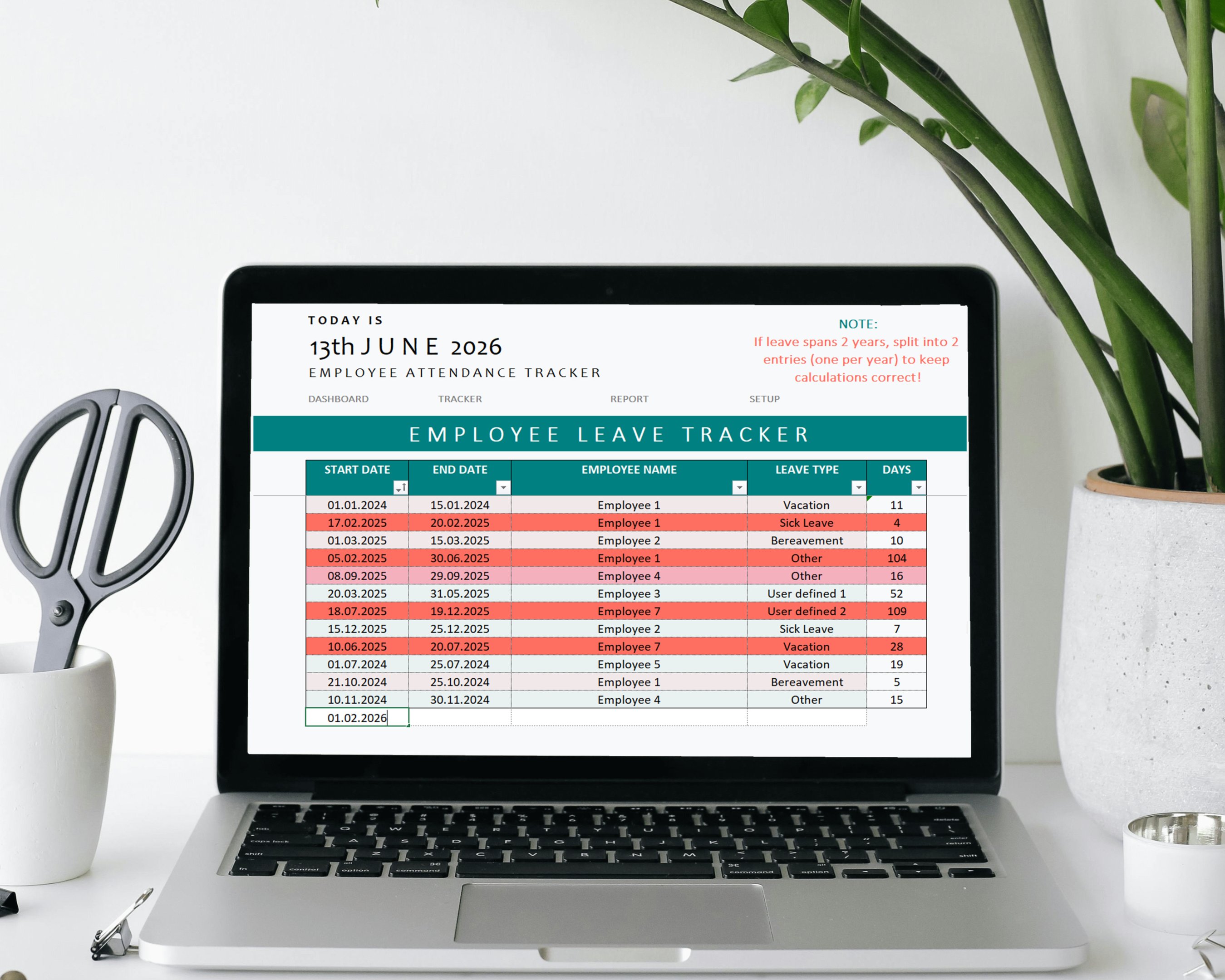
The leave log is the main part of the tracker. This is where you record each absence or leave request.
A practical leave log usually includes:
start date;
end date;
employee name;
leave type;
number of days;
notes or comments;
approval status, if needed.
For easier reporting, each leave period should be entered as a separate row. If a leave period spans two calendar years, it is usually better to split it into two entries, one for each year. This helps yearly summaries stay accurate.
4. Calendar view
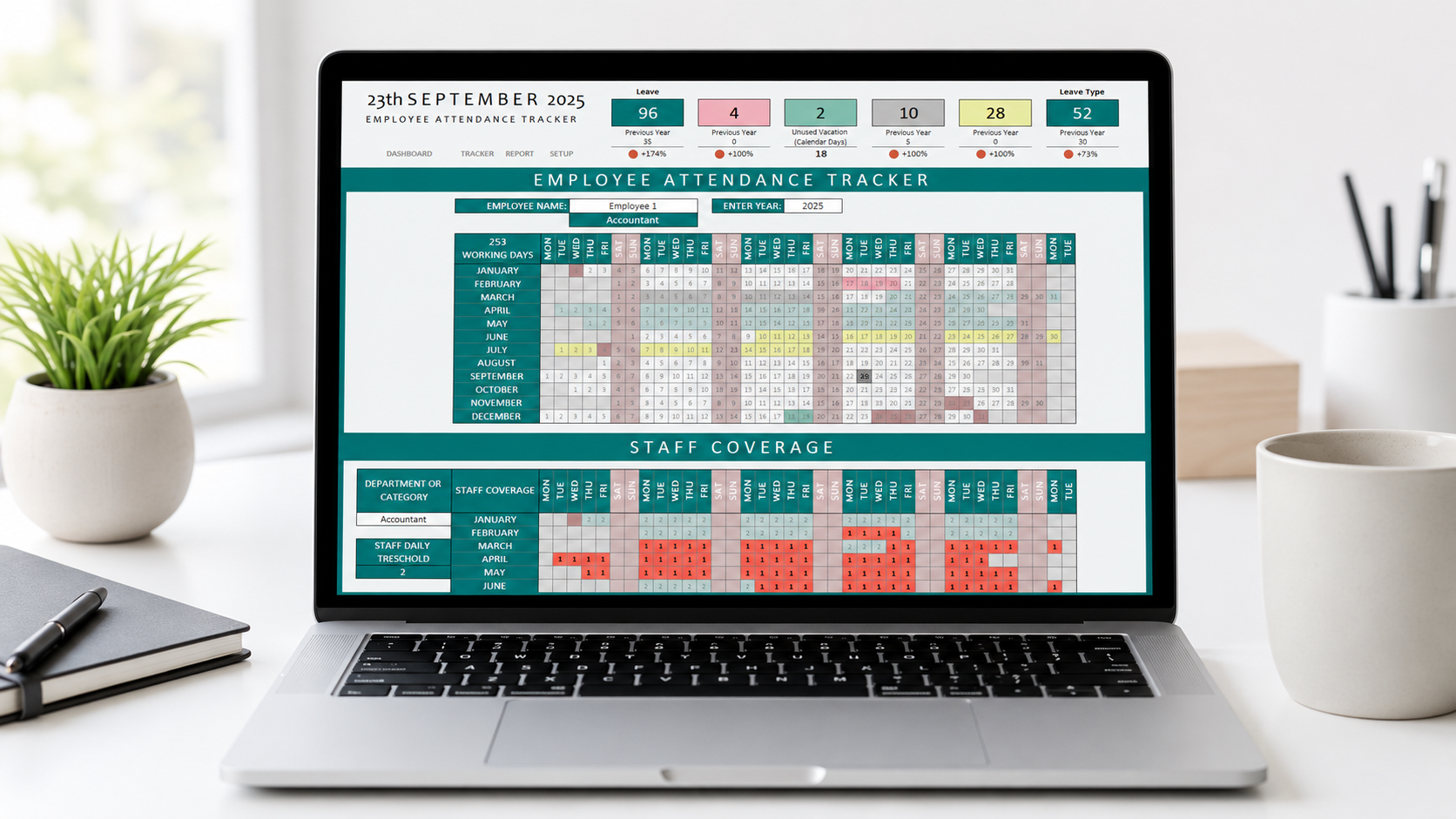
A calendar-style dashboard can make the tracker much easier to understand visually. Instead of reviewing only rows of data, you can see which employees are away on specific dates.
A good calendar view may show:
selected year;
employee names;
days of the month;
weekends;
holidays;
leave days by type;
today’s date;
color-coded absence periods.
This makes it easier to spot patterns, such as multiple employees being away at the same time or specific months with higher absence levels.
5. Staff coverage overview
If your business needs a minimum number of people available each day, staff coverage tracking can be especially useful.
For example, you may want to check:
how many employees are available each day;
whether a department has enough staff;
which days are below the required coverage level;
whether overlapping leave requests could create staffing problems.
This is helpful for small offices, clinics, shops, service teams, production teams, and other workplaces where staffing levels matter.
6. Yearly summary
A yearly summary gives a quick overview of leave totals for each employee. It can show total leave days, leave days by type, unused vacation days, and warning notes.
This helps managers answer questions such as:
How many vacation days has each employee used?
Who has unused leave?
Which leave types are most common?
Are there any unusual or incorrect entries?
Are some records outside the employee’s employment period?
A summary view also makes it easier to review information without filtering the raw leave log every time.
7. Printable employee report
For some businesses, it is useful to generate a simple printable report for one employee and one selected period. This can be helpful for internal reviews, employee discussions, or yearly record keeping.
A printable report may include:
employee name;
selected year or period;
total leave days;
leave totals by type;
unused vacation balance;
list of recorded leave periods;
print date.
This is not always necessary, but it can make the tracker feel more complete and professional.
Common mistakes when tracking leave in Excel
When attendance tracking is done manually, small mistakes can quickly affect the whole summary. Here are some common issues to watch for.
Inconsistent employee names
If employee names are typed manually, one person may appear under several variations. For example, “Anna Smith”, “A. Smith”, and “Anna S.” may be treated as different people by formulas.
Using dropdowns can help prevent this.
Wrong date formats
Dates should be entered consistently. If some dates are stored as text instead of real Excel dates, calculations may not work correctly.
Overlapping leave periods
If an employee has two leave entries that overlap, totals may become incorrect. A good tracker should make overlapping periods easy to notice.
Leave outside employment period
If an employee starts or leaves during the year, leave calculations should consider only the relevant employment period.
Too many manual calculations
Manually counting days can lead to mistakes, especially if weekends, holidays, or partial-year employment need to be considered.
Building your own tracker vs using a ready-made template
You can build an attendance tracker from scratch in Excel if you are comfortable with formulas, date logic, dropdowns, conditional formatting, and dashboard design.
A custom-built file gives you full control, but it can take time to create and test. You may need to set up employee lists, leave types, formulas, calendar views, summary tables, warnings, and print layouts manually.
A ready-made Excel attendance tracker can be useful if you want to start faster. Instead of building the structure yourself, you can open the file, enter your setup information, and begin recording leave entries.
When choosing a ready-made template, check whether it includes:
clear setup instructions;
employee and leave type setup;
data entry table;
calendar or dashboard view;
yearly summary;
warning indicators;
print-friendly reports;
Excel version compatibility;
Google Sheets version, if needed.
Final thoughts
Tracking employee attendance and leave in Excel can be a simple and effective way to organize HR records for a small business. The key is to keep the structure clear: define employees, set leave types, record each leave entry consistently, and use summaries or dashboards to review the data.
A spreadsheet tracker works best when it reduces manual work instead of creating more of it. Built-in formulas, dropdowns, color-coded views, and clear instructions can make the file easier to maintain over time.
If you do not want to build an attendance tracker from scratch, a ready-made Excel attendance and leave tracker can help you start faster with a structured layout, visual summaries, and practical setup guidance.
Need a ready-made attendance tracker?
View the related Employee Attendance and Leave Tracker template on Etsy.