How to Manage Inventory and Reorder Levels in Excel
Learn how to manage inventory and reorder levels in Excel, including stock balances, incoming and outgoing items, reorder warnings, supplier details, and inventory value.
BUSINESS OPERATIONS
How to Manage Inventory and Reorder Levels in Excel
Managing inventory is one of the most important daily tasks for many small businesses. Whether you sell physical products, store supplies, manage materials, or track items in a small warehouse, you need to know what is in stock, what has been used, what is arriving soon, and when it is time to reorder.
Excel can be a practical tool for inventory tracking because it is flexible, familiar, and easy to customize. A well-structured inventory spreadsheet can help you monitor stock levels, reorder points, incoming items, outgoing items, supplier details, item locations, and inventory value without using complex warehouse management software.
In this guide, we will look at how to manage inventory and reorder levels in Excel, what information your tracker should include, and how a ready-made spreadsheet template can help you save time.
Why inventory tracking matters
Without a clear inventory system, it is easy to lose control of stock. Items may run out unexpectedly, too much money may be tied up in excess stock, or products may be stored in different places without a reliable overview.
A simple inventory tracker can help you:
see current stock levels;
track incoming and outgoing items;
identify low-stock items;
calculate reorder needs;
monitor item locations;
review supplier information;
estimate inventory value;
reduce manual counting errors;
make purchasing decisions more confidently.
For a small business, inventory tracking does not always need to be complicated. In many cases, a structured Excel spreadsheet is enough to create a clear stock overview and avoid common inventory problems.
What should an inventory tracker include?
A good inventory tracker should give you a clear answer to three basic questions:
What do I have in stock?
Where is it located?
When do I need to reorder?
To answer these questions, your Excel inventory file should include several key sections.
1. Item list
Start with a master item list. This is the foundation of your inventory tracker.
An item list may include:
item name;
SKU or item code;
category;
supplier;
unit type;
minimum stock level;
reorder quantity;
item location;
last purchase price;
notes.
Using a master item list helps keep the tracker consistent. Instead of typing item names manually in every transaction, you can use dropdowns or references from the item database.
This reduces spelling mistakes and makes your summaries more accurate.
2. Current stock balance
The current stock balance shows how many units of each item are available.
In a basic tracker, you can calculate current stock like this:
Current Stock = Starting Stock + Incoming Stock - Outgoing Stock
This allows you to see how much stock is available after purchases, deliveries, sales, usage, or internal transfers are recorded.
For better visibility, you can also add color warnings:
green for healthy stock;
yellow for low stock;
red for items below the reorder level.
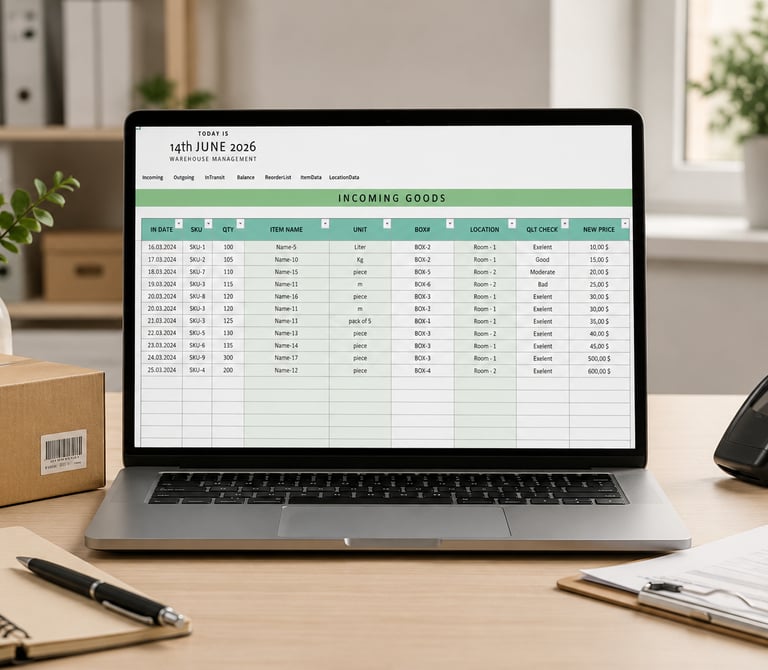
3. Incoming inventory
Incoming inventory includes items that have been purchased, ordered, or received.
Your incoming inventory table may include:
date ordered;
date received;
item name or SKU;
supplier;
quantity ordered;
quantity received;
unit price;
total cost;
delivery status;
notes.
This helps you track not only what has already arrived, but also what is still in transit. If your business depends on supplier deliveries, tracking incoming stock can help prevent unnecessary duplicate orders.
4. Outgoing inventory
Outgoing inventory records items that leave your stock.
This can include:
sold products;
used materials;
damaged items;
internal consumption;
returned or removed stock;
stock adjustments.
Your outgoing inventory table may include:
date;
item name or SKU;
quantity removed;
reason;
project, order, or customer reference;
notes.
Tracking outgoing items is important because stock levels are only accurate if removals are recorded consistently.
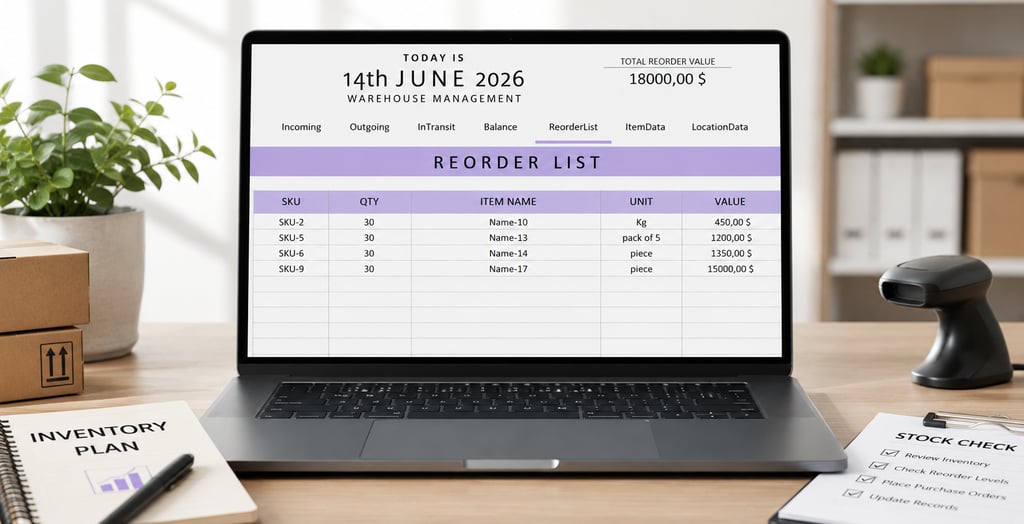
5. Reorder levels
Reorder levels are one of the most useful parts of an inventory spreadsheet.
A reorder level is the minimum stock quantity that tells you when it may be time to order more. For example, if you set the reorder level for an item to 10 units, the tracker can flag the item when current stock drops to 10 or below.
A simple reorder warning can be based on this logic:
If Current Stock ≤ Reorder Level, show “Reorder”
This helps you avoid running out of important items.
6. Reorder quantity
The reorder quantity tells you how much to order when stock is low.
For example:
current stock: 8 units;
reorder level: 10 units;
target stock: 30 units;
suggested reorder quantity: 22 units.
You can use a simple rule, such as ordering enough to return to your preferred stock level. This keeps purchasing more consistent and helps avoid both shortages and overstocking.
7. Item location
If items are stored in multiple rooms, shelves, boxes, warehouses, or storage areas, location tracking is very useful.
Your tracker can include fields such as:
warehouse;
room;
shelf;
bin;
box number;
storage notes.
Even for a small business, location tracking can save time. Instead of searching manually, you can quickly see where an item should be stored.
8. Supplier information
Supplier details are useful when you need to reorder quickly.
You may want to track:
supplier name;
contact person;
email;
phone number;
website;
typical delivery time;
minimum order quantity;
usual price;
notes.
If your inventory tracker includes supplier data, it becomes easier to place repeat orders and compare supplier performance over time.
9. Inventory value
Inventory value helps you understand how much money is tied up in stock.
A basic calculation could be:
Inventory Value = Current Stock × Last Purchase Price
This gives an estimated value of items currently in stock. For small business planning, this can be helpful when reviewing purchasing, storage, and cash flow.
If you need formal accounting valuation, you may need a more specific method, such as FIFO or weighted average cost. But for basic internal tracking, an estimated inventory value can still be useful.
How to set reorder levels in Excel
Reorder levels depend on your business, item usage, supplier delivery times, and how much safety stock you want to keep.
Here are a few practical factors to consider.
Average usage
Look at how quickly each item is used or sold. Items with high usage usually need higher reorder levels.
For example, if you use 5 units per week and delivery takes 2 weeks, you may need at least 10 units available before reordering.
Delivery time
Supplier delivery time is important. If an item takes several weeks to arrive, your reorder point should be higher than for items that arrive within a few days.
Safety stock
Safety stock is extra stock kept as a buffer. It helps protect against delays, unexpected demand, or supplier issues.
For example, if you normally need 20 units during the delivery period, you may set the reorder level to 25 or 30 units to give yourself extra protection.
Storage limits
Some items may be expensive, large, seasonal, or difficult to store. In these cases, keeping too much inventory can create unnecessary costs. Reorder levels should balance availability with storage and cash flow.
Common inventory tracking mistakes
Inventory tracking mistakes can create confusion and lead to wrong purchasing decisions. Here are some common issues to avoid.
Not updating outgoing stock
If items are removed but not recorded, the spreadsheet will show more stock than you actually have. This can lead to unexpected shortages.
Using inconsistent item names
If the same item is entered under several different names, your formulas and summaries may not work correctly. Use item codes or dropdowns to keep names consistent.
Not setting reorder points
Without reorder levels, you may only notice low stock when it is already too late. Reorder warnings make the tracker more proactive.
Ignoring items in transit
If you only track received items and not incoming orders, you may place duplicate orders or lose visibility over what is expected to arrive.
Not reviewing old or unused stock
Inventory tracking should also help you identify items that are not moving. Slow-moving stock can take up space and tie up money.
Building your own tracker vs using a ready-made template
You can build an inventory tracker in Excel from scratch if you are comfortable with tables, formulas, dropdowns, conditional formatting, and summary dashboards.
A custom spreadsheet gives you flexibility, but it can take time to create and test. You need to set up item databases, transaction logs, stock balance calculations, reorder warnings, inventory value summaries, and possibly supplier or location tracking.
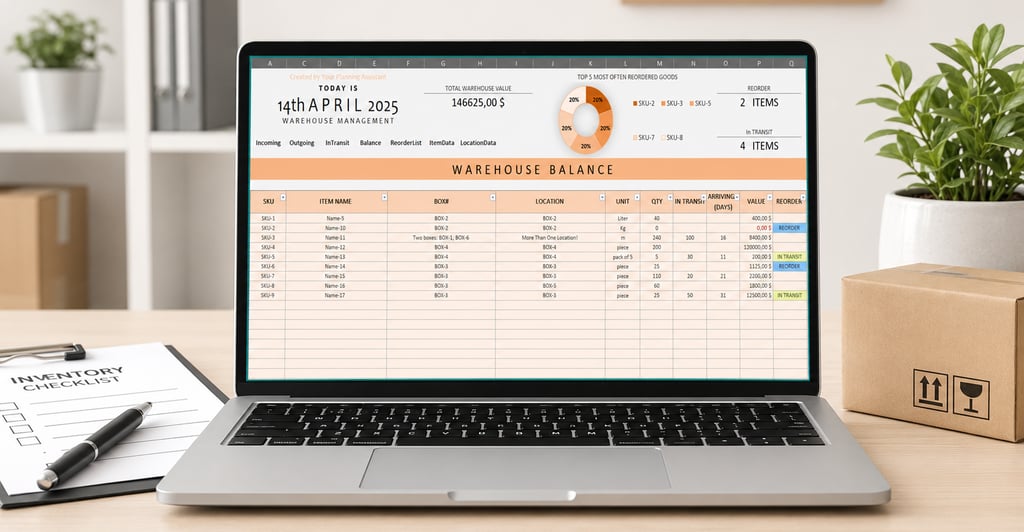
A ready-made Excel inventory template can help you start faster. Instead of building the structure manually, you can enter your items, record incoming and outgoing stock, and use built-in formulas to monitor balances and reorder needs.
When choosing a ready-made inventory tracker, check whether it includes:
item database;
incoming inventory log;
outgoing inventory log;
current stock balance;
reorder level warnings;
automatic reorder list;
supplier details;
item location fields;
inventory value calculations;
dashboard or summary views;
clear instructions;
Excel or Google Sheets compatibility.
Final thoughts
Managing inventory in Excel can be a practical solution for small businesses that need a clear, affordable, and customizable way to monitor stock. The key is to keep the system structured: define your items, record incoming and outgoing movements, set reorder levels, and review stock balances regularly.
A good inventory tracker should not only show what you have today, but also help you see what needs attention next. Reorder warnings, item locations, supplier details, and inventory value summaries can make your spreadsheet much more useful for everyday business decisions.
If you do not want to build an inventory tracker from scratch, a ready-made Excel inventory template can help you start faster with structured tables, automatic stock calculations, reorder warnings, and practical setup guidance.
Need a ready-made inventory tracker?
View the related Inventory Tracker template on Etsy.